In this article I wanted to touch on a few topics around Linux security and hardening — I won’t go too deep into specifics here, since I’d like to cover them in more detail in dedicated posts later on. Enjoy!
General Security
What makes Linux a secure system?
Linux is an Open-Source operating system, which makes it very hard to sneak a backdoor or any malicious code into the source without anyone noticing. Windows, on the other hand, often carries bugs that stick around for years before getting fixed, since Microsoft is the only one with access to the source code.
Multiuser system
Linux is a multi-user system, and that lets you segregate access to files and settings. There’s a user called the superuser, whose username is root; it holds every privilege to do anything, and even if some files and/or configurations have been hidden by another user, root can still access them.
Own root, own the system.
One of the advantages of Linux is that files and processes can only be executed, modified, or deleted by their owner or by root.
Nothing is 100% secure — there’s always a trade-off between usability and security.
Service accounts
Some services, daemons, or applications on Linux use their own dedicated account; web servers, for example, own the files/folders and configurations they need in order to protect the exposed files (and the system as a whole).
Attackers are people, and people are often lazy
There are generally far more Windows machines out there, especially on the consumer side, than Linux ones, which makes Windows the more attractive target. On top of that, people running Linux tend to be technically minded and therefore more security-conscious than the average user.
That’s exactly why Windows has so many viruses — it doesn’t mean Linux doesn’t have any.
Centralized software management
On Linux systems, software is managed and installed through a package manager; the various distributions have cryptographically signed repositories, which guarantees that the software you install really is what it claims to be.
Most software on Linux is itself open-source, with all the benefits mentioned above.
Security guidelines
MINIMIZE SOFTWARE AND SERVICES
If you don’t need a piece of software or a service, uninstall it. The risk is “helping” the attacker by expanding your exposed surface.
USE SEPARATE SYSTEMS FOR DIFFERENT SERVICES
If an attacker manages to exploit your web server, and there’s a file-sharing service on the same system, there’s a good chance they’ll get access to that too.
ENCRYPT DATA IN TRANSIT
Encrypting communications prevents MITM (man-in-the-middle) attacks. Use SFTP, SNMPv3, HTTPS, SSH. Avoid protocols that communicate in plaintext, like TELNET.
DON’T USE SHARED ACCOUNTS
Everyone accessing the system should have their own account, and that applies to services too. Shared accounts not only reduce a system’s overall security, they also make auditing much harder.
DON’T LOG IN AS ROOT
Users should use their own accounts and, when needed, use the sudo command to run commands or programs with elevated privileges. Using sudo means actions get logged, which improves auditing.
Unlike other accounts, root is often shared, so it needs to be handled carefully and used only when strictly necessary.
MAINTAIN YOUR ACCOUNTS
Strong passwords (12+ alphanumeric characters), changed regularly, improve the system’s security posture. Accounts no longer in use should be removed (or disabled, depending on the situation).
TWO-FACTOR AUTHENTICATION
For critical systems (military or government ones, say), authentication should rely on multiple factors — typically a password plus a temporary code (OTP) or a fingerprint.
APPLY THE “LEAST PRIVILEGE” PRINCIPLE
Don’t run services as root — they’ll work just fine under their own service accounts. Give users only the minimum privileges they actually need to do their job.
MONITOR SYSTEM ACTIVITY
Review system logs periodically and forward them to a centralized logging system, typically a SIEM, so you still have a copy even if the local logs get wiped.
USE A FIREWALL
Linux ships with a built-in software firewall: netfilter + iptables. Again following the “least privilege” principle, only allow the connections you actually need and drop everything else, even if the system sits behind a hardware firewall too.
ENCRYPT SENSITIVE DATA
On top of encrypting connections, sensitive data also needs to be encrypted at rest, to prevent unauthorized reading or tampering. Information stored in databases needs to be encrypted too.
Physical Security
Physical security concepts
Physical access to a system is a serious security threat — someone with bad intentions could power the system off, boot it into single user mode, and install their own software: only grant physical access when it’s actually needed. Treat physical access controls the same way you’d treat system logins.
Datacenters should only be accessible to authorized personnel, visits should be escorted, and you should avoid advertising the datacenter’s existence to the outside world.
For cloud systems you still need to think about physical security (the datacenters do exist somewhere on the planet 😉). Every virtual machine you rent lives on some physical hardware, so it’s important to be able to trust your provider. Also worth remembering: your provider has access to your data, so encrypt your cloud environment wherever you can.
Single user mode security
The physical security problem is bad enough that someone could physically reboot a machine (or, for VMs, through the virtual console) and drop into single user mode — often as root, with no password required.
You can require a password even in single user mode, by switching the setting from /sbin/sushell to /sbin/sulogin.
# Set '/sbin/sulogin' to require a password in single user mode
# Otherwise set '/sbin/sushell'
SINGLE=/sbin/sulogin       <--- will require the password
The files you typically need to edit are /boot/grub/grub.conf and /etc/sysconfig/init. The exact approach can vary depending on the distro you're using.
On Ubuntu systems it's important to actually set a root password, since it usually isn't set by default.
Securing the Boot Loader
By editing the Kernel boot configuration (kernel -> init -> system) you can set
init=/bin/bashto bypass authentication entirely.
In GRUB's configuration you can set a superuser and password to protect the kernel and prevent boot parameters from being passed in without that password.
The system is still vulnerable to these attacks if the storage itself is readable (i.e. unencrypted).
Disk Encryption
The Operating System needs access to decrypted files in order to work with them. On Linux, dm-crypt (device mapper crypt) is used for disk encryption; it provides encryption that's completely transparent to both the user and the system — a new device gets created under /dev/mapper and can be used just like a regular disk, LVM included.
LUKS (Linux Unified Key Setup) is a frontend for dm-crypt; it supports multiple passphrases and is also widely used for removable devices.
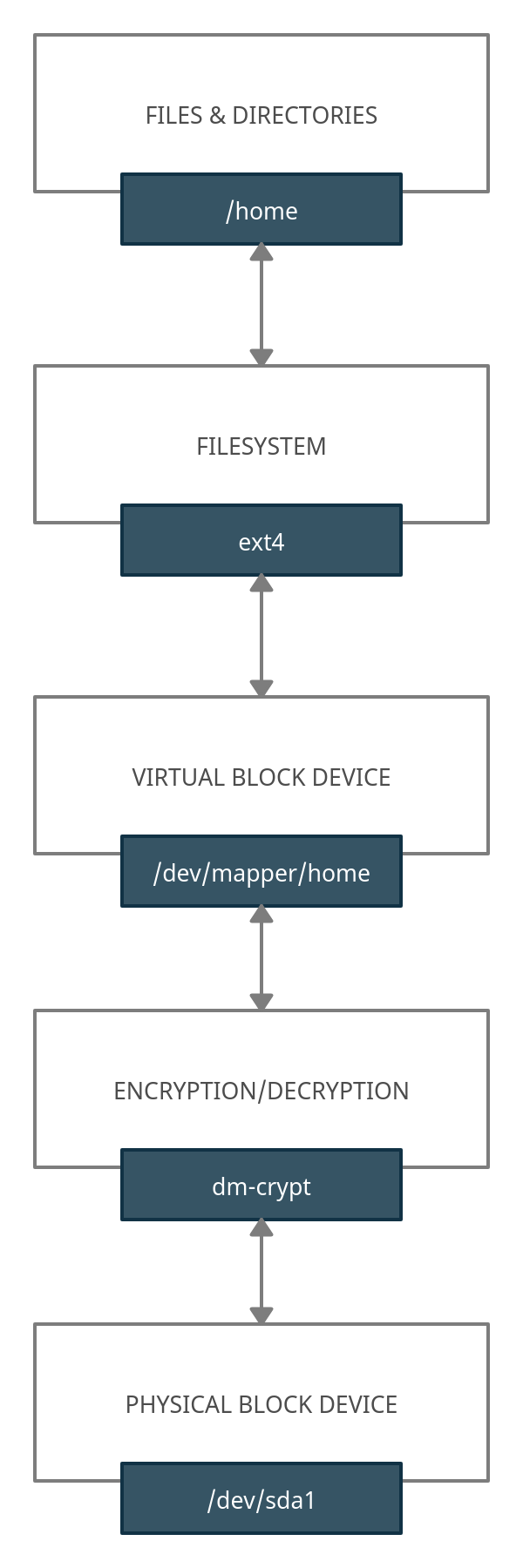
Setting up LUKS
Warning: this process wipes all existing data
TIP: before encrypting the disk, it's worth running shred to fill it with random data first. This makes it considerably harder for a potential attacker to figure out where the actual data section starts and ends.
- Install the cryptsetup package
- Run the command:
sudo cryptsetup luksFormat /dev/sdbWhere /dev/sdb is the disk to encrypt — be careful to pick the right one!
3. To access the disk, run:
sudo cryptsetup luksOpen /dev/sdb OPTReplace OPT with the path under /dev/mapper where you want to mount the disk. If you want automounting, you'll need to update the configs in /etc/fstab and /etc/crypttab.
4. Close the encrypted device with:
sudo cryptsetup luksClose OPTWhere OPT is the folder name under /dev/mapper.
You can also check out the deep-dive article on LUKS:
Full Disk Encryption on Linux with LUKS
Introduction to PAM
Linux Account Security
An internal user has more access to the system than an external one — a common attack pattern is to get in as some regular user and then work toward privilege escalation.
One way to harden a system is to only grant users access to exactly what they need.
PAM (Pluggable Authentication Modules) lets you manage authentication centrally, instead of leaving that sensitive job up to every individual application.
You can add modules to PAM (biometric modules, for instance) to change how login works.
Configurations live under /etc/pam.d, and the directive format is:
module_interface control_flag module_name module_argumentsThe module_interface values are:
- AUTH — User Authentication
- ACCOUNT — Checks whether the user is enabled
- PASSWORD — Changes a user's password
- SESSION — Manages user sessions
The control_flag values tell PAM what to do with a given result:
- REQUIRED — the module's result must succeed to continue
- REQUISITE — same as above, but stops immediately without invoking further modules
- SUFFICIENT — authenticates the user as long as no REQUIRED modules have failed
- OPTIONAL — the module's result can be ignored unless it's the only module
- INCLUDE — pulls in configuration from another file
Linux Account Types
root — can do anything on the system, always has UID=0 (it's not the name "root" that grants the power)
system users — have UID < 1000
normal users — have UID ≥ 1000, and are almost always actual human (interactive) users
Password Security
Don't leave password complexity up to your users. Use the PAM_PWQUALITY module (built on top of PAM_CRACKLIB).
Shadow Passwords
Passwords used to be stored in /etc/passwd; with shadow passwords enabled, they're stored in /etc/shadow instead.
Format of the /etc/shadow file:
- username
- password hash (or an asterisk for accounts that can't log in directly)
- date of the last password change (in epoch time)
- minimum number of days before the password can be changed again
- maximum number of days the password stays valid
- number of days of advance warning before the password expires
- number of days after expiry before the account gets disabled
- account expiration date (in epoch time)
- reserved field
Each line represents a user, with fields separated by ":", so a line in the file looks like this:
mariorossi:$6$F5o3Sdoc$y.IdYyCK74kDS6zXxW7iFer8JdaagQAViaZJGO1Om8MPZUxn8XTml9TNLn2deLNRPNKwZAvHKfefAtnDVD5Zo/:14671:0:90:6:7:14800:9To stop users reusing an old password, you need the PAM_PWHISTORY module.
Controlling access
Using the commands
passwd -l   # Lock
passwd -u   # Unlock
you can lock and unlock an account, or you can edit the passwd file and set nologin instead of the default shell. Login can also be disabled through the PAM_NOLOGIN module.
The last, lastb, and lastlog commands let you review access logs.
If you want to block remote connections that repeatedly fail to log in, you can use fail2ban.
Login can be further secured with multi-factor authentication via OTP codes — there are PAM modules for Google Authenticator, Duo Security, and RSA SecurID.
Security by account type
- Use a regular user account
- Disable direct root login
- Use the sudo command
- The root password should be different on every system
- Make sure root is the only account with UID=0
Disabling root login
Via PAM_SECURETTY: this configuration lets you specify exactly where root is allowed to log in (tty, console). If no terminal is specified, single user mode remains the only way in.
Via SSH: edit the settings in /etc/sshd.
System or application accounts
Use a single account per service or application, and don't enable login for these accounts.
User accounts
Use a single account per physical person, remove accounts that are no longer needed, and clean up everything tied to a user when they're removed.
Network Security
Services are also called network services, daemons, or servers, and they listen on specific ports.
They run continuously in the background, and their output gets logged by the system, typically under /var/log unless a config file or the application's defaults say otherwise. Each service handles a single job: serving web pages, serving a database, sniffing traffic.
- Using a dedicated user per service gives you the benefit of separation of duties
- Ports below 1024 are privileged ports and require root to open
- Unused services should be stopped and uninstalled
- Avoid services that communicate insecurely
- Keep both services and the system itself up to date
A TCP WRAPPER can be a useful extra layer for improving your system's security posture.
Information Leakage
Avoid revealing software and version information unless it's actually necessary — edit or remove service banners.
Services managed by xinetd
These services live under /etc/xinetd.d/SERVICE; the point of xinetd is to start a service on demand, the moment it notices a connection come in on a specific port.
Stay safe!